Step 1: Deleting Contacts
- Within the Contacts section you may check one or more records, click the trashcan icon, and delete the record(s).
- You may also delete an individual from within their Contact Record.
Step 2: Restoring Contacts
There are a few options for restoring contacts - individually or using a bulk action.
Individually Restore Contacts: This is the option for individual contacts you wish to restore one at a time. You may check multiple contacts to restore as well.
- Navigate to Contacts > Restore Contacts.
- Click to check the box next to the Contact(s) you wish to restore.
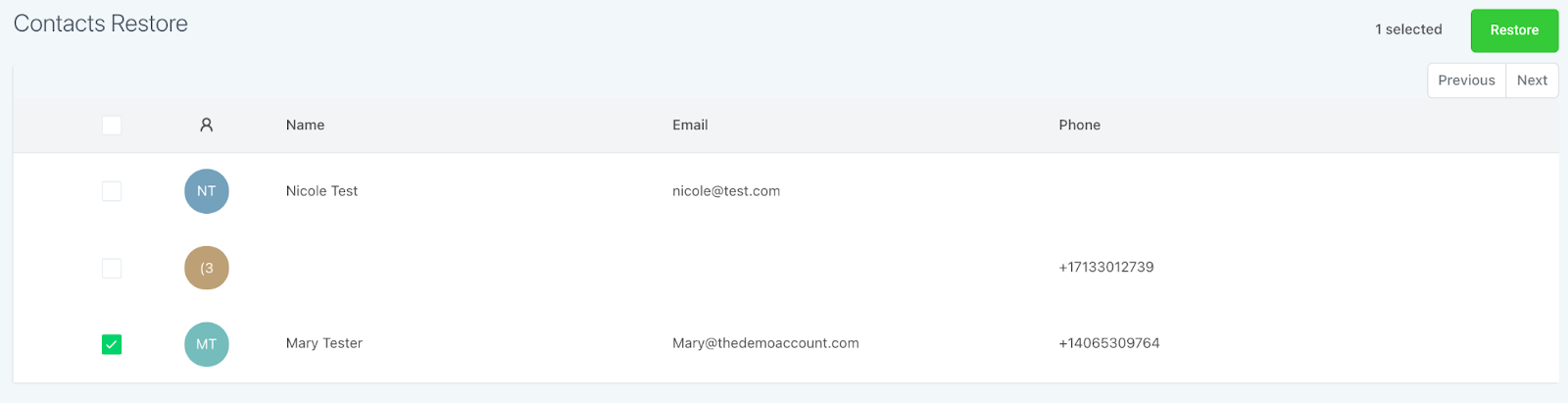
- Click the “Restore” button in the top right.
- Click Confirm in the popup window to confirm the restoration.
- Now the contacts will be back in your Contacts list.
Bulk Action - Restoring Contacts: This option is used for restoring contacts that were deleted in bulk.
- Navigate to Contacts > Bulk Actions
- Using the Actions menu, click the three dots to open up the menu.
- Click “Restore”
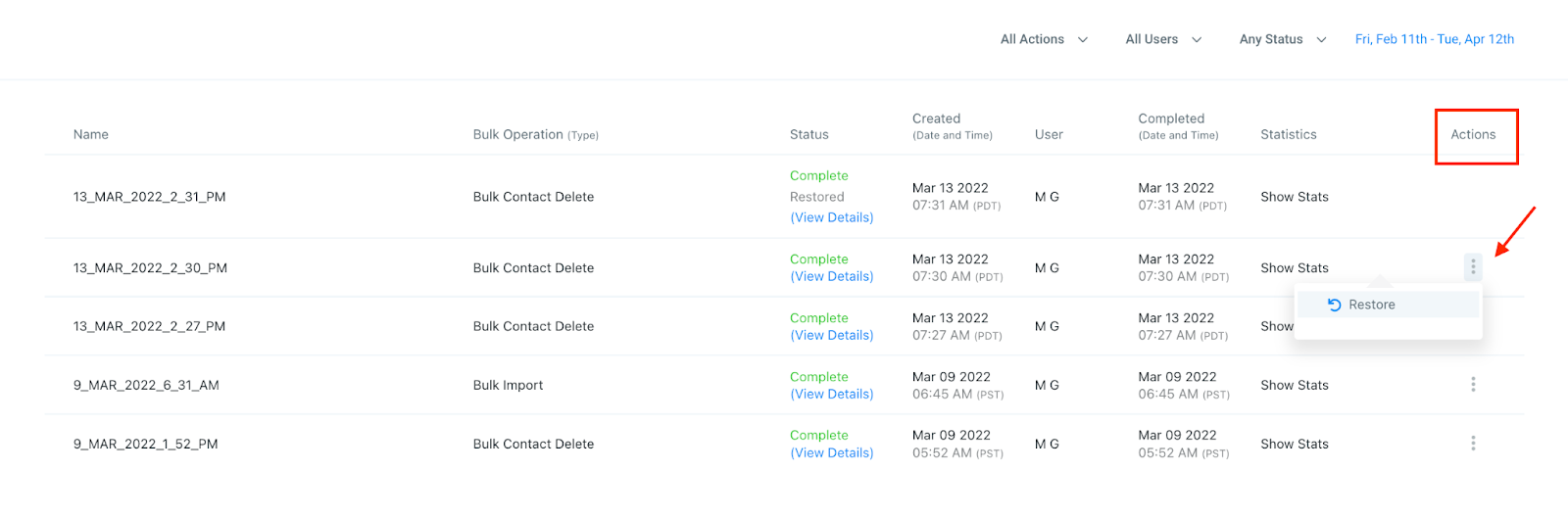
- The Contacts will be added back to your list.
- You will see the Status shows as “Completed” once the process is done.