By automating the affiliate payout process using PayPal, businesses can save time, reduce errors, and ensure timely payments to affiliates. This guide provides a comprehensive overview of setting up automated affiliate payouts using PayPal within your affiliate management system, including key features, benefits, and step-by-step instructions to get started.
Key Features and Benefits
- Streamlined Payment Process:
- Flexible Payment Options:
- Secure and Reliable:
- Comprehensive Tracking:
- Enhanced Affiliate Satisfaction:
How to Use PayPal for Automating Affiliate Payouts
Requirements
- PayPal Business Account:
- Affiliates’ PayPal Accounts:
Note: Only Account Admins can authorize payouts using this method.
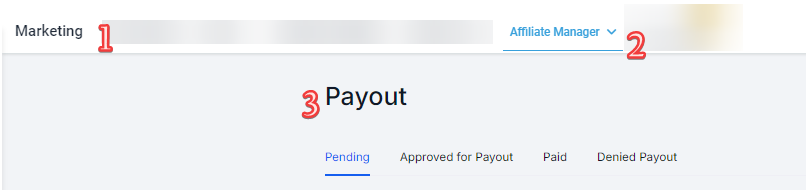
Step 1: Navigate to the Payouts Page
Access the Payouts page within the Affiliate Manager section of your system. This is where all payout-related actions will take place.
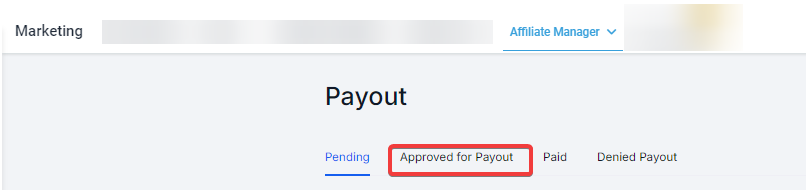
Step 2: View Approved Payouts
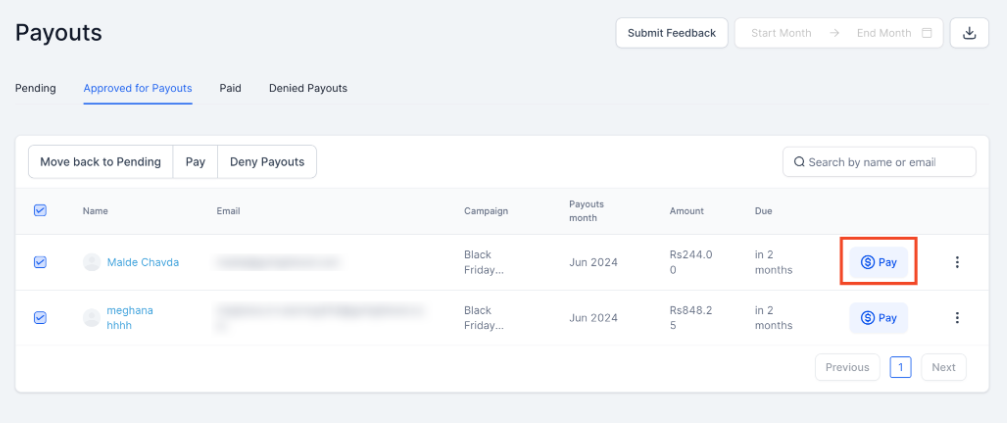
Switch to the "Approved for Payouts" tab to see all commissions that are ready to be paid. This tab provides a clear overview of which affiliates are awaiting payment.
Step 3: Select Affiliates for Payouts
Select the affiliates you wish to pay by checking the box next to their names.
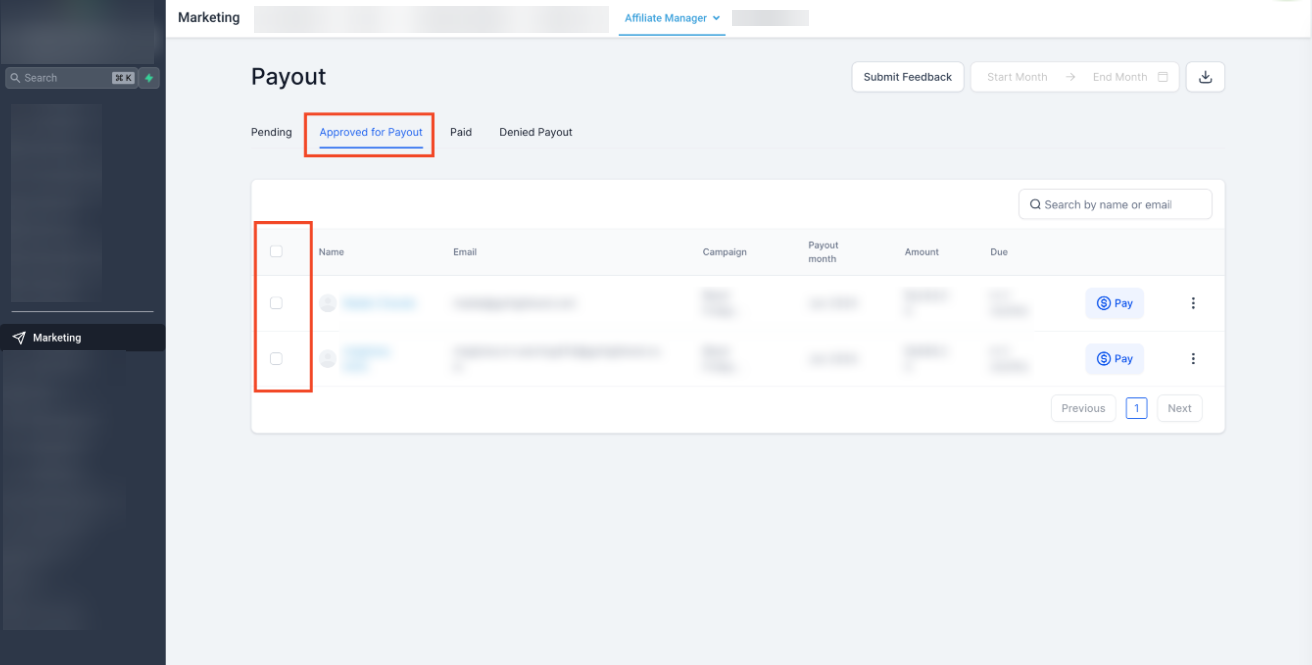
You can choose to pay individual affiliates or multiple affiliates at once.
Step 4: Initiate Payout
Once your selection is made, click on the "Pay" button. For bulk payments, select the affiliates and click "Pay" at the top.
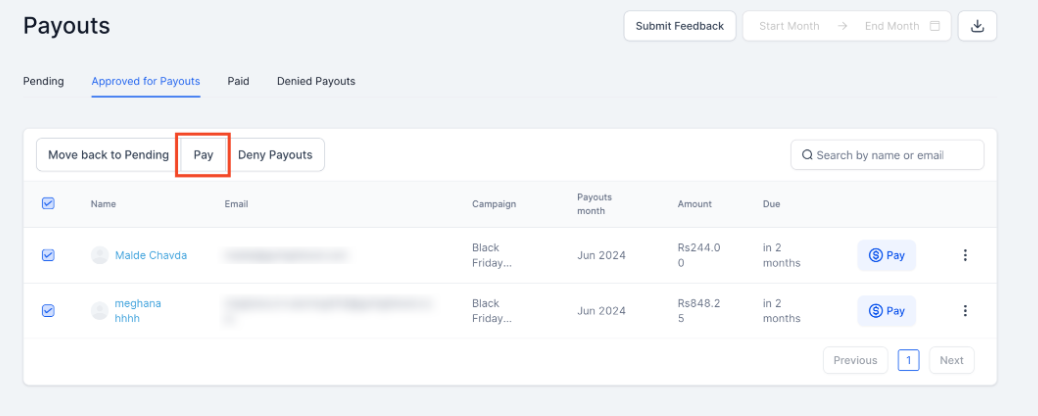
For individual payments, use the blue pay icon next to each affiliate's name.
Step 5: Review and Confirm
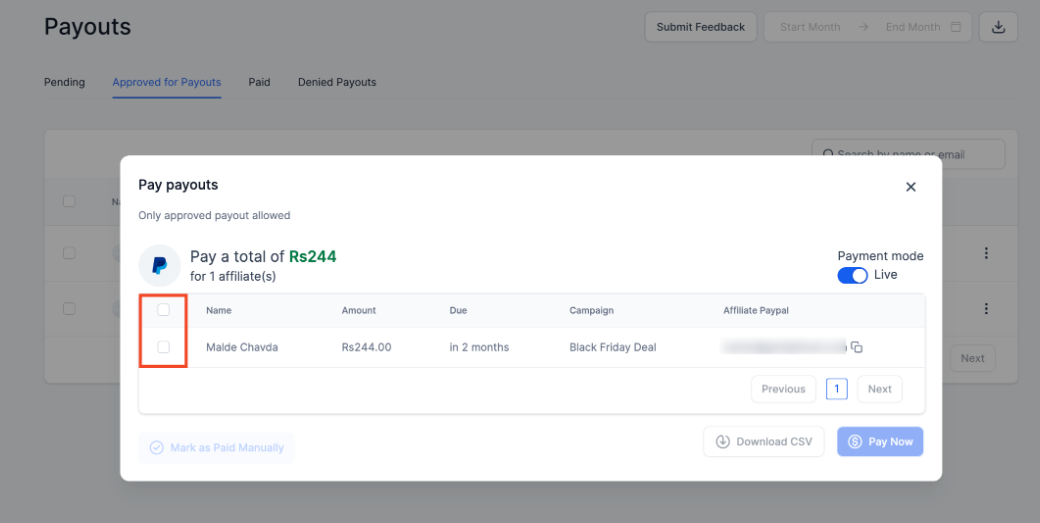
Review the payout details on the confirmation screen. Ensure all details are correct, and then click on "Pay Now" to finalize the transaction.
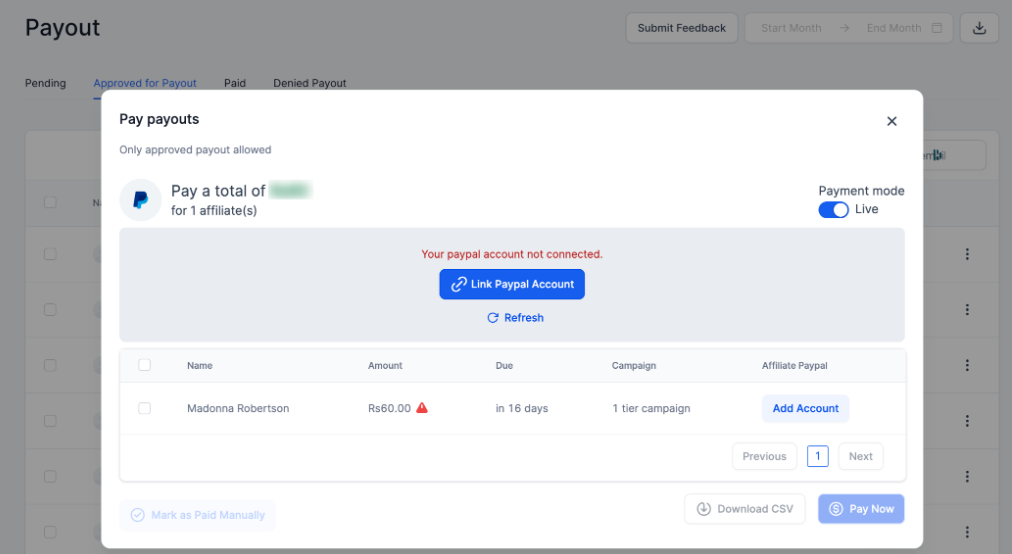
If your PayPal Business account is not yet linked, an error message will prompt you to connect your account. Click "Link PayPal Account" and follow the integration guide to enable automatic payouts.
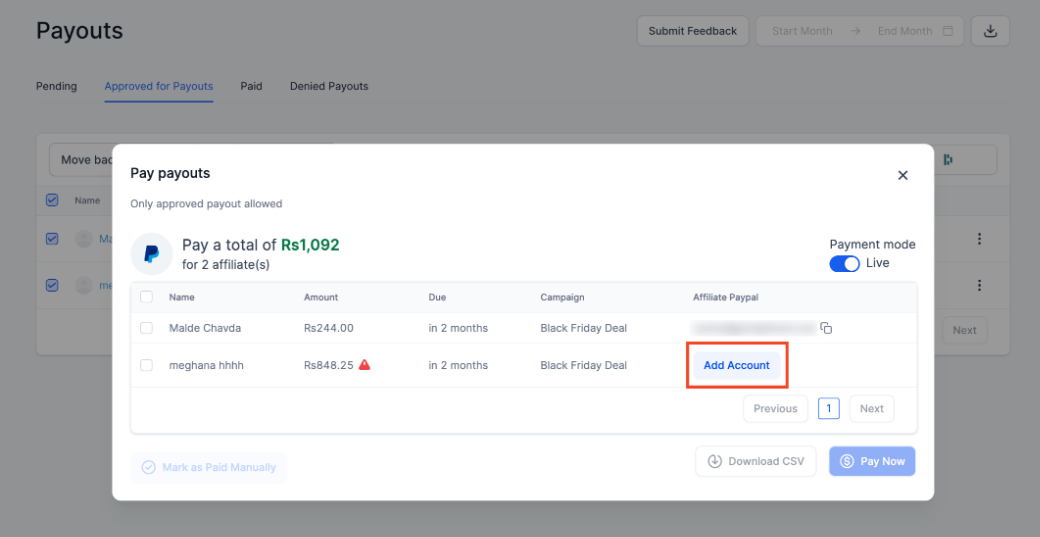
Ensure that payouts are only processed for affiliates who have added a PayPal account under their payout methods. If an affiliate does not have a linked PayPal account, an error icon will appear with an option to "Add Account."
Important Notes
- After clicking "Pay Now," you can monitor the status of payouts under the "Paid" tab.
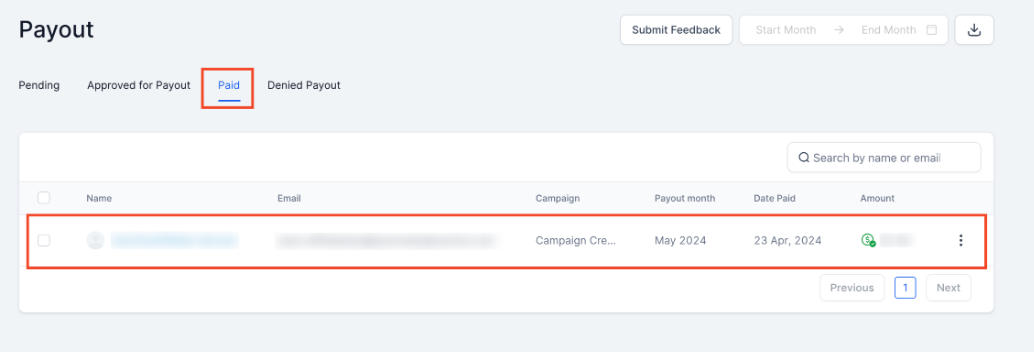
- You can click on the three dots to view the payout details.
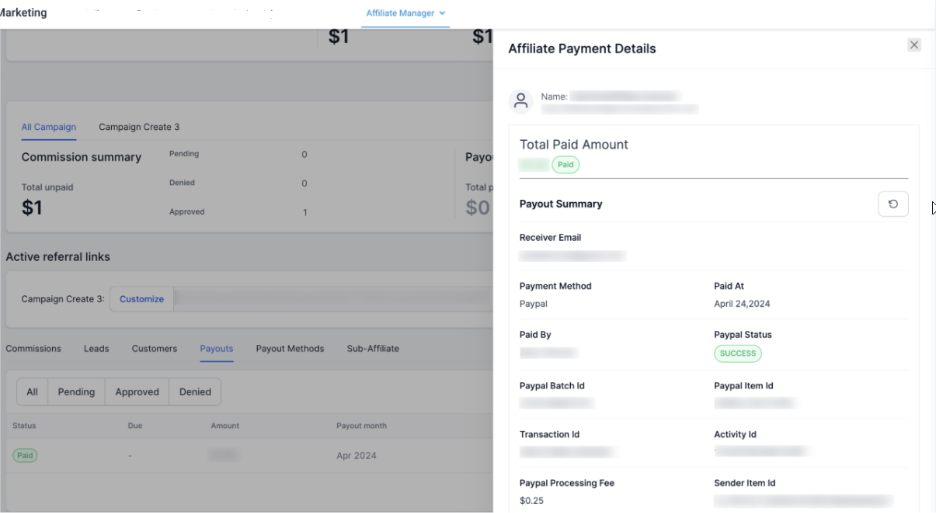
- The status may initially show as "Pending" due to processing times by PayPal. Refresh the page to update the status.
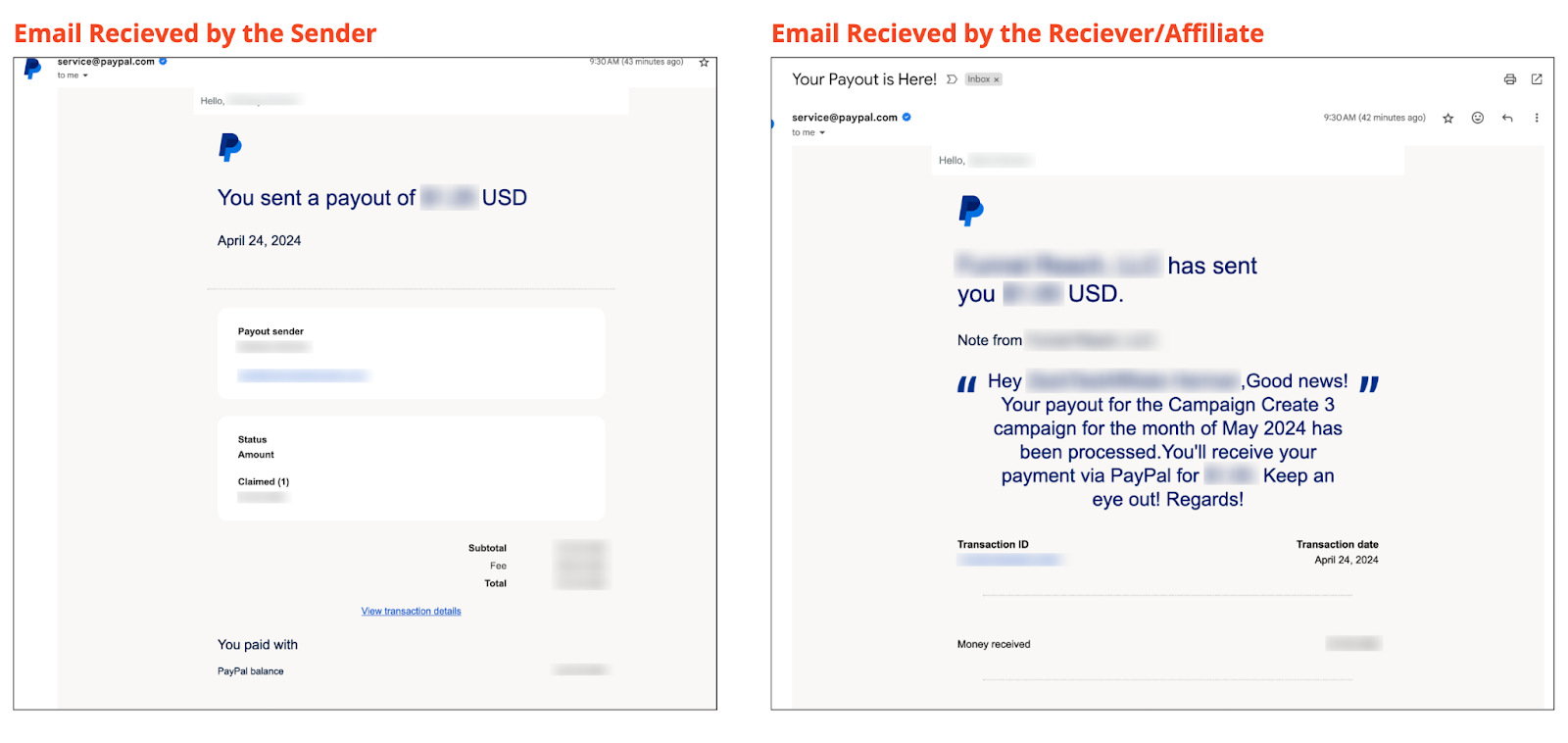
- Both the admin (the sender) and the affiliate (the Receiver) will receive email notifications once the payout is completed.
Pro Tips
- Check PayPal Credentials:
- Test Mode:
- Confirm PayPal IDs:
- Set Permissions Carefully:
FAQs
Q: How do I set up PayPal for automatic payouts?A: To set up PayPal for automatic payouts, link your PayPal Business account to your affiliate manager's payout settings and ensure affiliates have added their PayPal accounts.
Q: Can I pay affiliates in bulk or individually?A: Yes, you can choose to pay affiliates individually or in bulk by selecting the appropriate option in the Payouts tab.
Q: What happens if an affiliate does not have a PayPal account linked?A: Affiliates without a linked PayPal account will not receive payments. You will see an error icon and an option to "Add Account" for those affiliates.
Q: How do I resolve errors when linking PayPal?A: If you encounter errors when linking PayPal, follow the integration guide to ensure all settings and credentials are correctly configured.
Q: How long does it take for payouts to process?A: Payouts may initially show as "Pending" and typically take some time to process. Refresh the status in the Paid tab or check your PayPal account for updates.